
Download Tapes Screencast Sharing – free screen recorder, instant share link
Overview
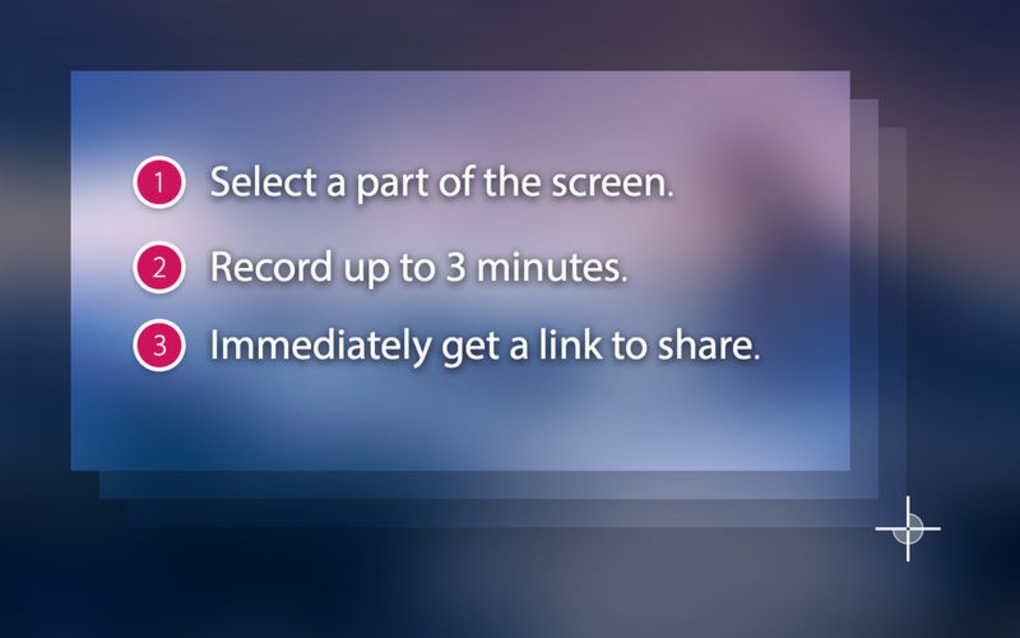
Tapes Screencast Sharing is a lightweight yet powerful screen‑recording tool designed for anyone who needs to capture their desktop, a single window, or a custom region and share it instantly. Whether you’re a teacher creating a quick tutorial, a developer demonstrating a bug, or a marketer preparing a product demo, Tapes lets you hit “record,” finish in seconds, and receive a unique shareable link—called a “tape”—that can be sent to colleagues, clients, or social followers. The application focuses on speed, simplicity, and security: recordings are stored in encrypted cloud storage, and the share link can be set to expire after a chosen period, protecting sensitive information. Tapes works equally well for amateur users who need a no‑frills solution and for professional teams that require reliable performance, quick turnaround, and the ability to embed tapes directly into documentation or support tickets. Its modern UI, minimal learning curve, and cross‑platform availability make it a compelling alternative to bulkier editors that demand complex setup.
Key Features & Core Functionality
- Instant Recording: One‑click start/stop captures the entire screen, a selected window, or a custom area.
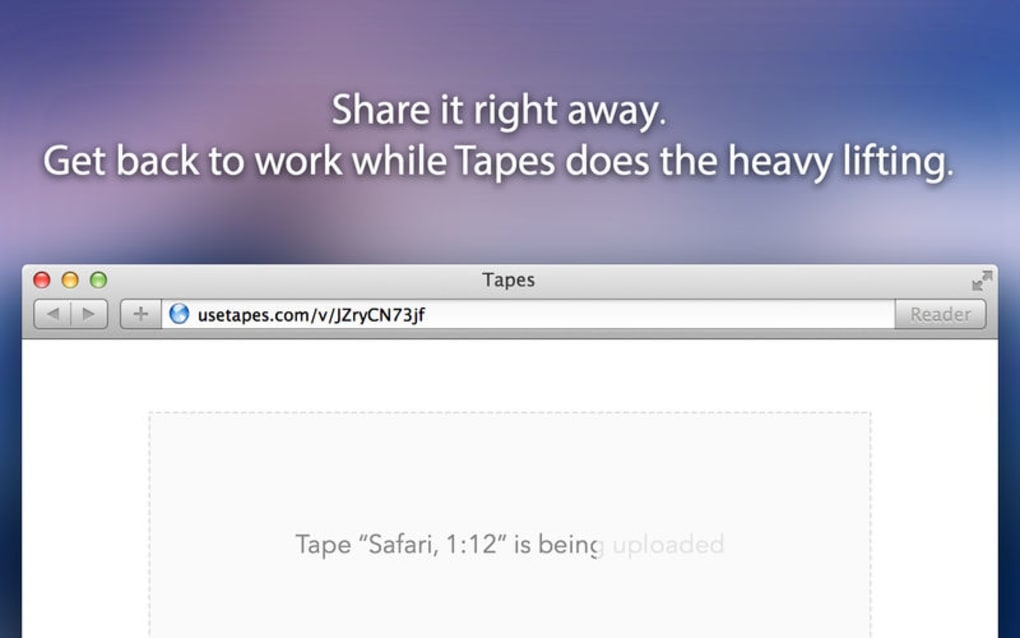
- Automatic Share Link: After recording, Tapes instantly generates a secure URL that can be copied or shared directly via email or chat.
- Cloud‑Based Storage: Recordings are uploaded to encrypted servers, eliminating the need for local file management.
- Link Expiration Settings: Choose 24 hours, 7 days, or indefinite availability for each tape.
- Embedded Player: The share link includes an embeddable HTML5 player, perfect for knowledge‑base articles or websites.
- Annotation Tools: Add simple callouts, arrows, or text overlays during recording without leaving the app.
- Audio Options: Record system audio, microphone input, or both simultaneously, with volume balance controls.
- Export Formats: Download tapes as MP4, GIF, or WebM for offline use or further editing.
- Lightweight Installer: Under 30 MB download size, quick installation, and low RAM footprint.
- Cross‑Platform Support: Native apps for Windows 10/11, macOS 12+, Android 8+, and iOS 13+.
Why These Features Matter
The combination of instant sharing and secure cloud storage addresses the most common pain points in everyday screen‑recording workflows. Users no longer need to hunt for large video files on their hard drive, compress them, and then attach them to an email—a process that can take minutes and often leads to broken uploads. By delivering a ready‑to‑share link the moment the recording stops, Tapes cuts the time‑to‑share to virtually zero. Security‑focused features like encrypted storage and link expiration give teams confidence that confidential demos or internal troubleshooting videos stay private. Additionally, the built‑in annotation tools let presenters highlight important UI elements on the fly, removing the need for a separate editing step. For developers, the ability to export to lightweight formats such as GIF or WebM means they can embed short visual bug reports directly into issue trackers like Jira or GitHub without bloating the ticket.
Installation, Usage & Compatibility
Step‑by‑Step Installation
Getting Tapes up and running is straightforward. Follow these steps for a smooth setup:
- Visit the official Tapes website and click the Download button that matches your operating system.
- Run the installer (Windows:
.exe, macOS:.dmg, Android:.apk, iOS: App Store link). - Accept the standard permissions—on Windows and macOS you’ll need to grant screen‑recording access; on mobile devices, allow microphone and storage permissions.
- Launch the app; the first‑time wizard will walk you through account creation (free tier) or sign‑in with existing credentials.
- Verify your email address to activate cloud storage and link‑generation features.
How to Record and Share
Once installed, creating a tape takes less than a minute:
- Open Tapes and click the bright red Record button.
- Select the capture mode: Full Screen, Window, or Custom Region.
- Toggle audio sources as needed—system, microphone, or both.
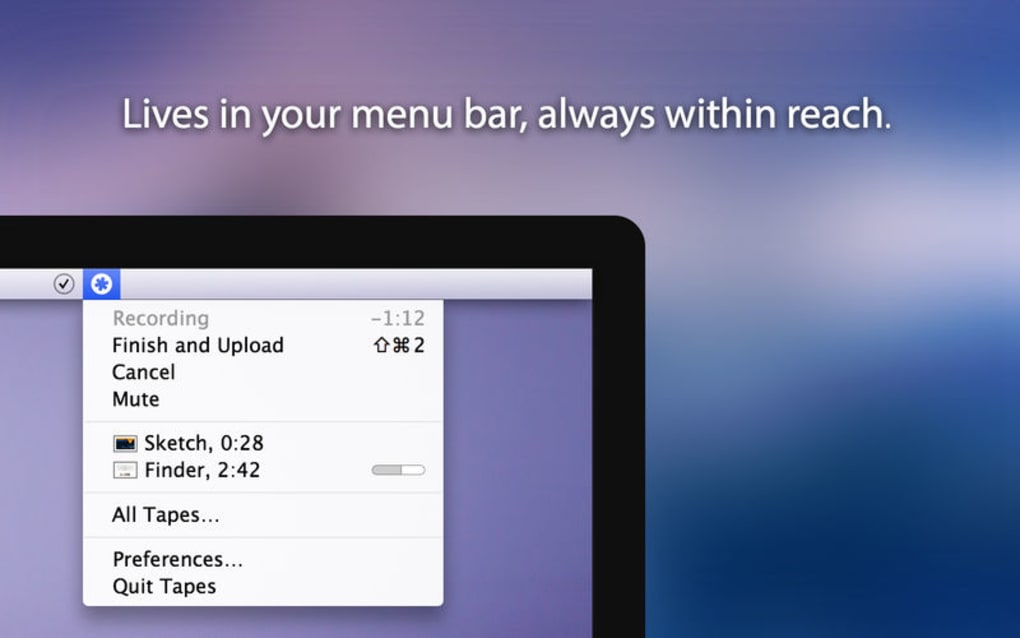
- Press Stop when finished; the app automatically uploads the file and presents a shareable link.
- Copy the link, set an expiration date if desired, and paste it into email, Slack, or a support ticket.
Operating System Compatibility
Tapes is built on native frameworks for each platform, ensuring optimal performance and minimal latency. It supports:
- Windows 10, Windows 11 (64‑bit)
- macOS 12 Monterey and later (Intel & Apple Silicon)
- Android 8.0 Oreo and later
- iOS 13 and later (iPhone & iPad)
Because the core engine uses hardware‑accelerated encoding (H.264/AV1), recordings remain smooth even on older laptops or mid‑range smartphones. The cloud upload process works over HTTPS, guaranteeing that your data is encrypted in transit and at rest.
Pros, Cons & Frequently Asked Questions
Pros
- Instant share link eliminates manual file handling.
- Secure cloud storage with optional link expiration.
- Lightweight installer and low system resource usage.
- Cross‑platform availability covers most user bases.
- Built‑in annotation tools reduce post‑production steps.
- Free tier provides generous recording minutes per month.
Cons
- Advanced editing (cut, splice, transitions) requires external software.
- Free tier imposes a 15‑minute maximum per tape.
- No native integration with third‑party project management tools (requires manual link copy).
- Limited custom branding options for enterprise accounts.
FAQ
Is Tapes free to use?
Yes, Tapes offers a free tier that includes up to 5 GB of cloud storage and 15 minutes of recording per tape. Paid plans unlock longer recordings, additional storage, and custom branding.
How secure are the recordings?
All recordings are encrypted with AES‑256 both during upload (HTTPS) and at rest on Tapes’ servers. You can also set an expiration date to automatically delete the tape after a chosen period.
Can I download a tape for offline use?
Absolutely. After the upload finishes, the share page includes a Download button that lets you save the file as MP4, GIF, or WebM.
What video codecs does Tapes use?
Tapes records using the H.264 codec for maximum compatibility, and on newer hardware it can switch to AV1 for better compression without quality loss.
Is there a limit to how many tapes I can create?
The free plan limits you to 20 tapes per month, while paid subscriptions offer unlimited tape creation.
Review Summary
Rating: ★★★★☆ (4.5/5)
Pros: Instant sharing, secure cloud storage, lightweight, cross‑platform.
Cons: No built‑in advanced editing, limited free recording length.
Conclusion & Call to Action
Tapes Screencast Sharing delivers exactly what modern creators, support teams, and educators need: a fast, secure, and hassle‑free way to turn screen activity into a shareable link in seconds. Its minimalistic design removes the friction that often accompanies traditional video editors, while the cloud‑first approach ensures that recordings are always accessible wherever you are. Although power users may still rely on dedicated editing suites for complex post‑production, Tapes excels as a first‑line tool for quick demos, bug reports, and tutorial snippets. If you’re looking for a free, cross‑platform recorder that prioritizes instant sharing and data security, Tapes is a solid choice. Download Tapes today, create your first tape, and experience the convenience of “record‑and‑share” without the usual overhead.







